Version 1.0.2 for Mac and Windows

Full control. Fewer wasted clicks.

A desktop tool for placing and editing resin-printing supports by hand. You decide every contact, tip and shaft, and the app makes that precise work faster. It is not a slicer: you export STL files for your slicer.

14 days with everything unlocked. No account, no payment details.

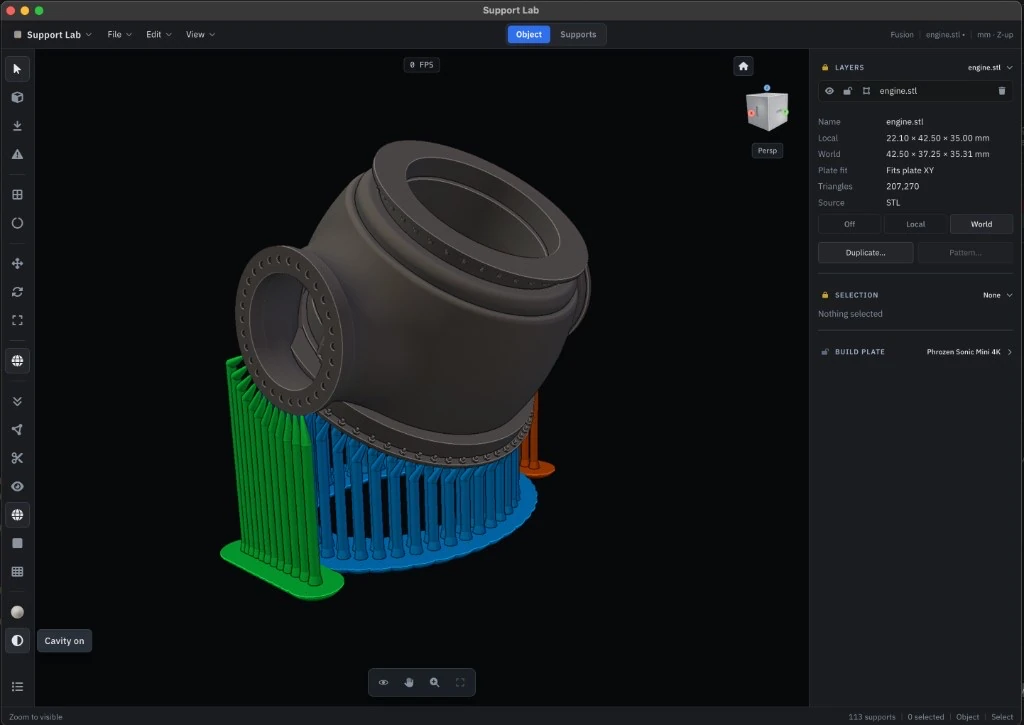
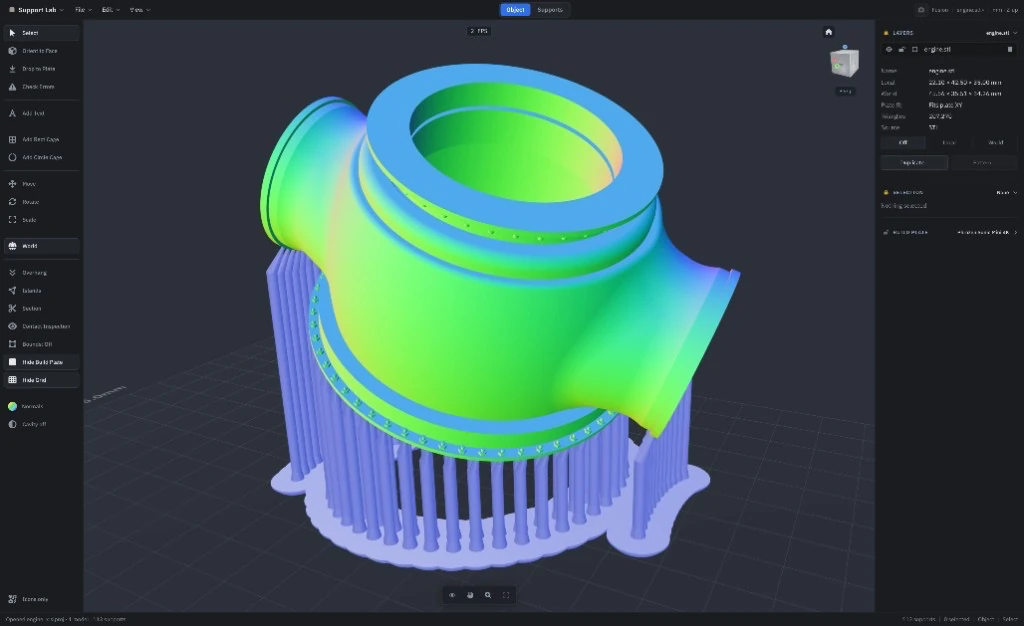
A model in Support Lab shaded by surface direction, standing on its supports
Version
1.0.2, 20 November 2026
Runs on
macOS 13 or later, Windows 10 or 11
Licence
2 computers, Mac or Windows
Updates
12 months included
Trial
14 days, everything unlocked
Download
104 to 126 MB

What Support Lab does

Place every support yourself

One click on the surface, and the pillar routes to the plate.

Tip, joint, shaft and foot follow from your click, and a height line traces the model at the contact height while you hover. Every dimension stays editable. Presets give starting values and never lock you in.

Supports placed by hand under a model in the Support Lab viewport

Move the model after supporting it

Supports follow when you move, rotate or scale.

Pillars, braces and contacts stay attached, and straight tips stay straight. A support that the new pose drives into the part gets a tilted tip that clears it. One that cannot be cleared turns red for you to fix.

Swap in a new mesh, keep the supports

Drop a revised STL onto the same object.

Supports, braces and placement stay. Tips that no longer touch the new surface light up, so you can let the app try a repair or fix them by hand without rebuilding anything.

A replaced mesh with the detached support tips highlighted

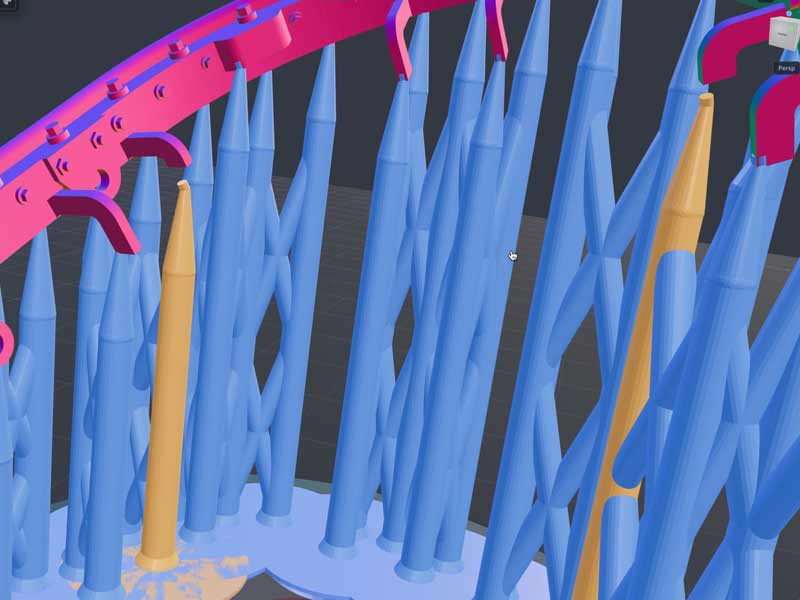
Bend a shaft around the part

Add joints along a shaft and drag them in space.

Dogleg around geometry, stack brace heights or shape a load path without splitting one pillar into several. Joints are added and removed from the selection bar.

Brace a whole cluster at once

Marquee a group of pillars and link them with struts.

Cross or diagonal struts go between nearest neighbours. Diameter, maximum distance, neighbour count and stacked rows are yours to set, with a live preview before you commit.

Lay out supports in patterns

Line, rectangle, circle, or a path you draw.

Set spacing or count and the margins, and see the result before you commit. How dense it gets is your call. The tool only takes the repetitive placing off your hands.

Find the islands

Every part that would start printing in mid-air, marked and numbered.

The markers and the list match, and a click on a row flies to that island. Add a support straight from a marker, with its own support type for each island.

Numbered island markers on the underside of a model

Check every contact

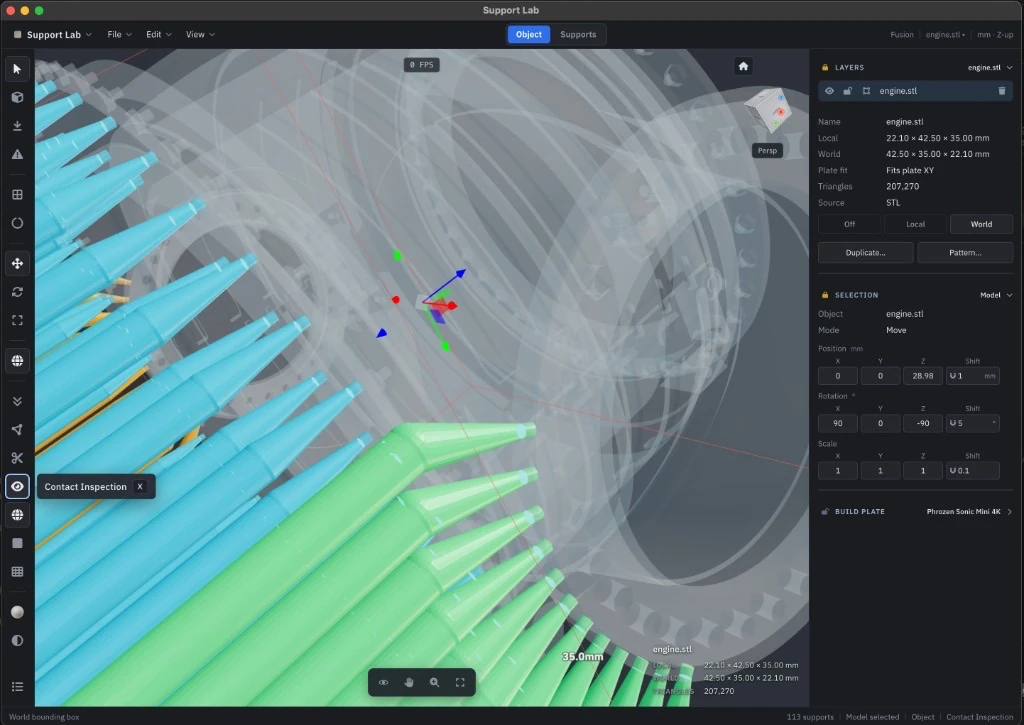
Contact footprints at their true diameter.

Switch on the contact view and the model turns transparent. Read diameter and penetration in millimetres and spot weak or loose contacts before they cost you a print.

A transparent model showing where each support tip touches it

Also in Support Lab

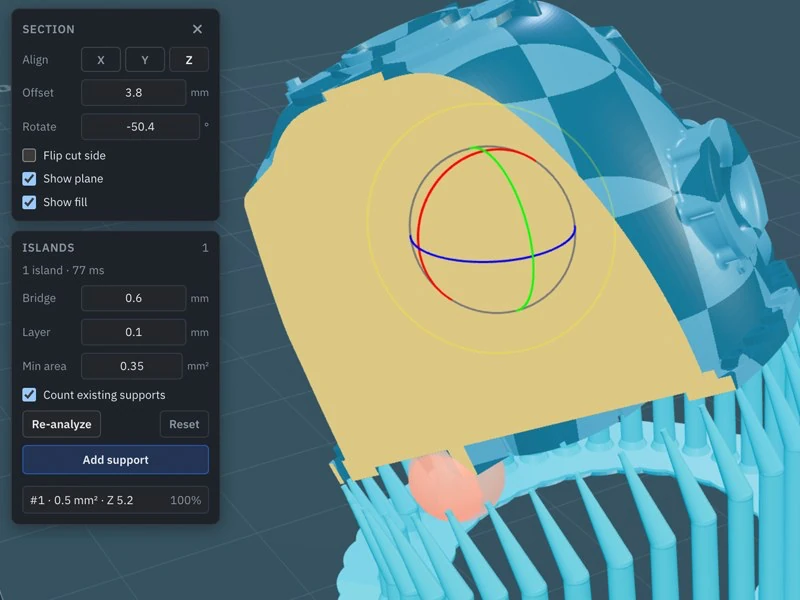
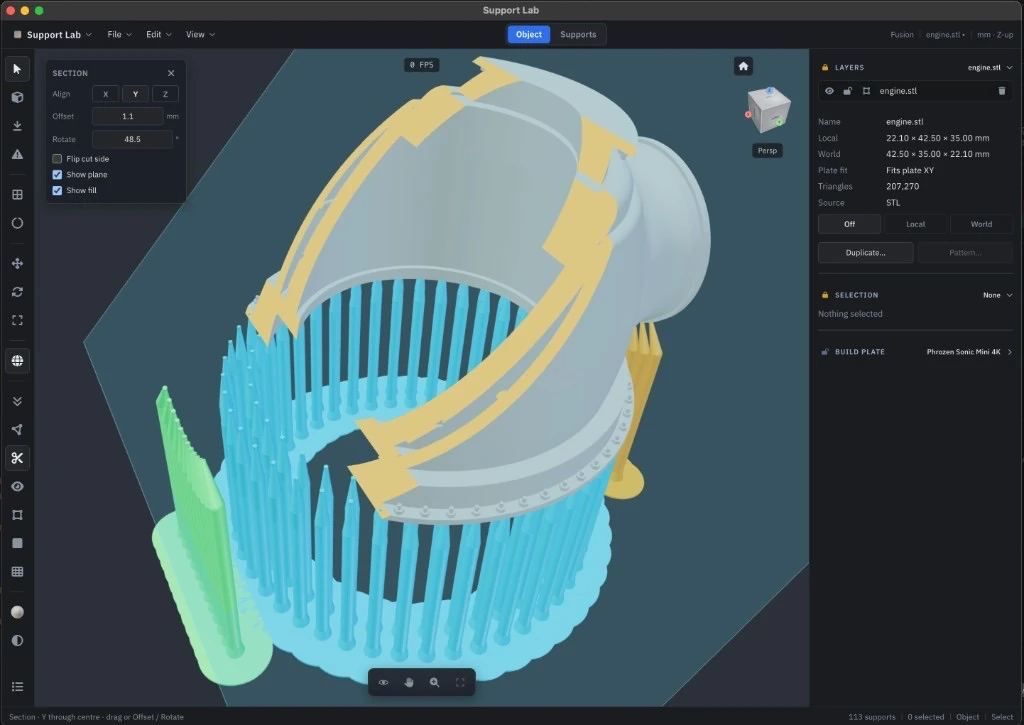
A model cut open by a section plane

Section cut

Cut through the model while you support it and check the load paths inside.

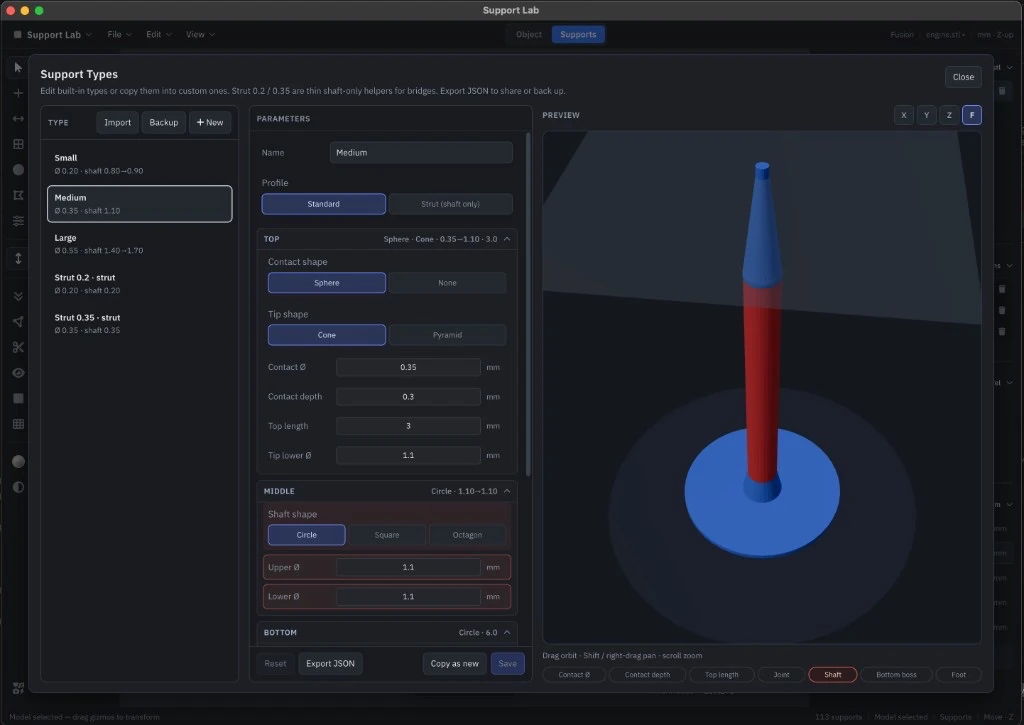
The support editor showing one support with its dimensions

Support editor

Edit tip, shaft and foot in their own editor. What you see is what exports.

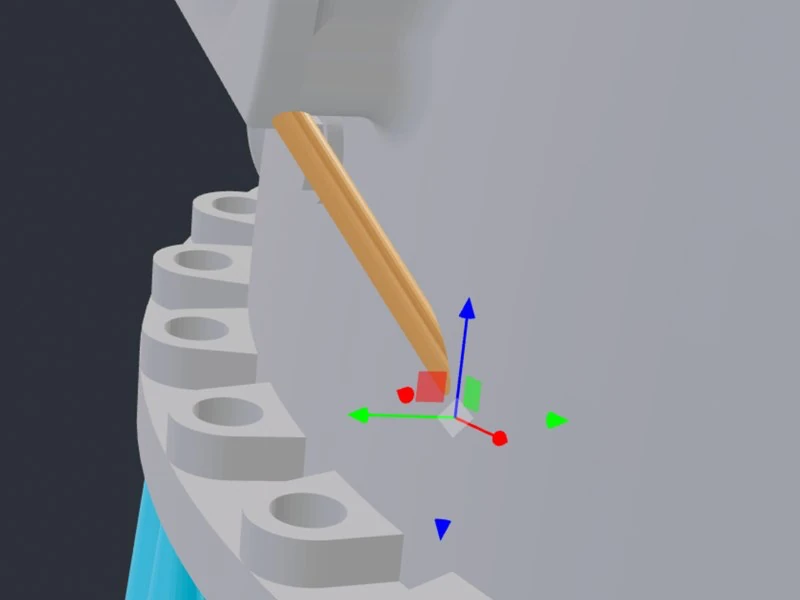
A strut spanning between two surfaces

Bridges and struts

Two clicks span between surfaces or onto a support that is already there.

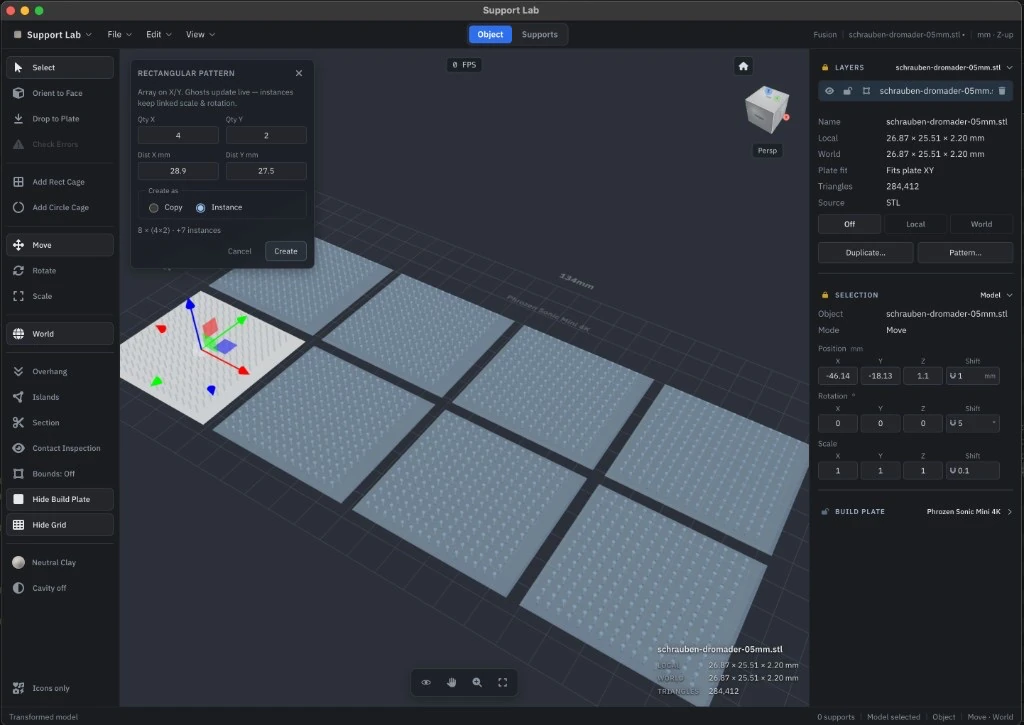
Several linked copies of one part on the build plate

Linked instances

Array a part as instances. Change one and every linked copy follows.

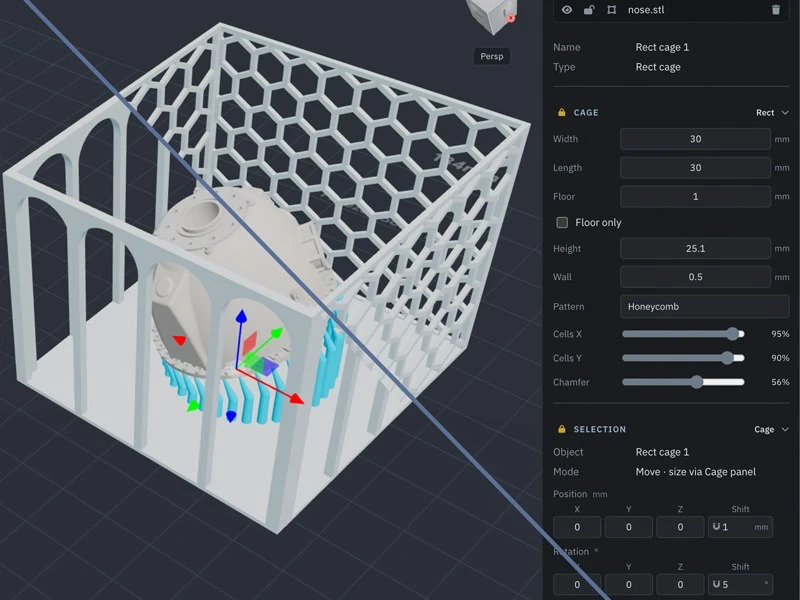
A rectangular cage with honeycomb openings around a part

Print cages

Cages with floor, walls and arch or honeycomb openings, editable until export.

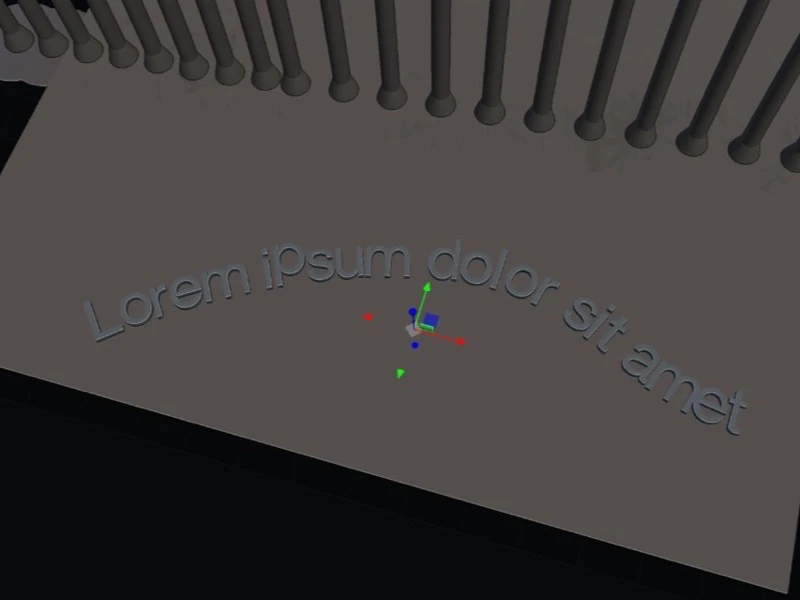
Extruded lettering following a curve on the build plate

Extruded text

Solid lettering on the plate, straight or along a path, for labels and marks.

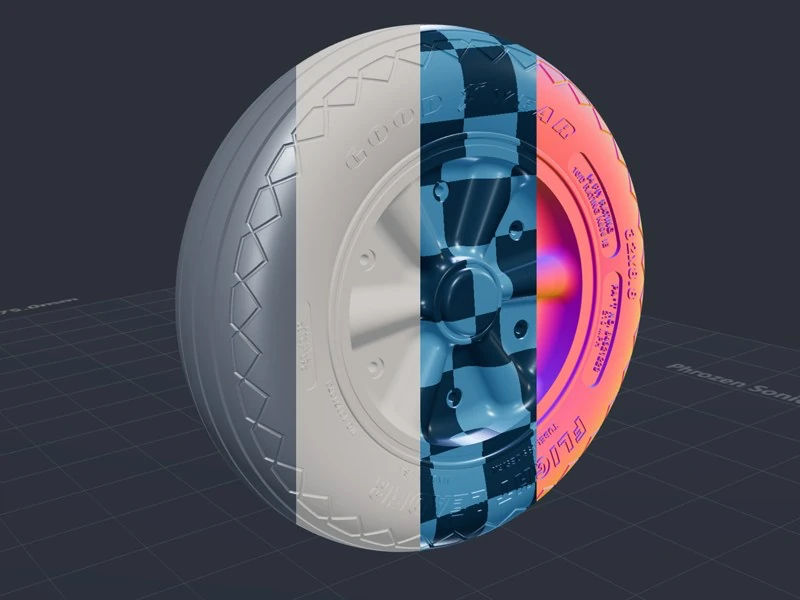
A model shown with a checker material

Surface inspection

Clay, checker and normal shading to read the form before you commit supports.

Many supports selected at once

Bulk edit

Select by rectangle, lasso or similar type, then retarget, duplicate or delete in one pass.

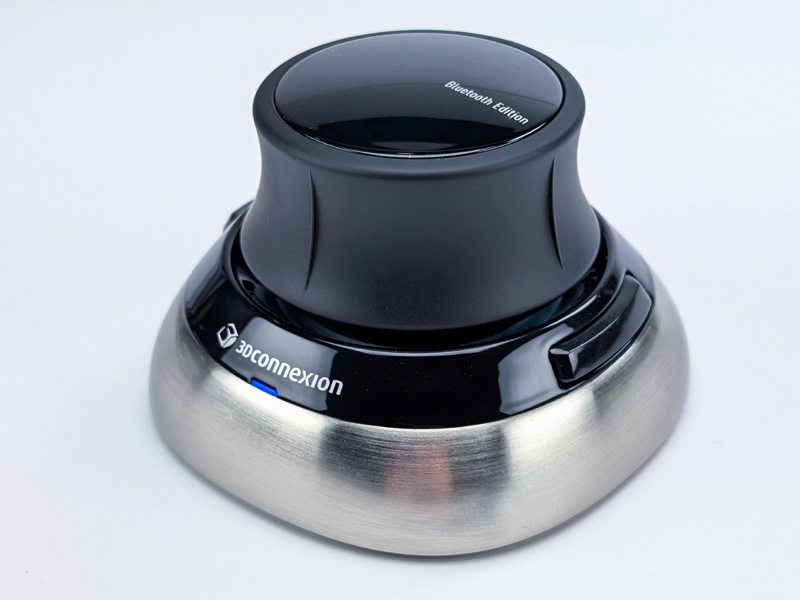
A SpaceMouse beside Support Lab

SpaceMouse

Orbit, pan and zoom with a 3Dconnexion SpaceMouse on Mac and Windows.

Nothing happens unless you do it

No support is added, moved or deleted on its own. There is no generator running in the background, and nothing gets “improved” behind your back.

Slicing stays in your slicer

Resin profiles, layer settings and sending to the printer remain where they are. Support Lab does the support step and exports STL files for your slicer.

Buy Support Lab

€59.50

One payment, no subscription. Price incl. 19% VAT for Germany.

Buy Support Lab for €59.50
  • You pay on Stripe’s or PayPal’s own page, so your card details never reach this site and are never stored here.
  • Your key appears on screen after paying and comes by email with the invoice.
Encrypted checkoutVisaMastercardPayPal

What you get

  • A licence key for 2 computers, Mac or Windows in any mix
  • Every update until 22 November 2027, if you buy today
  • Support Lab keeps working after that date
  • Download right after paying

Try it first

14 days with everything unlocked. No account and no payment details.

The download appears here as soon as the first version is out.

Questions before you buy

What can the trial do?

Everything, for 14 days, with no account and no payment details. When the trial ends, the app asks you to buy a key or enter one.

Does it replace my slicer?

No. Support Lab places and edits supports and exports STL files. Resin settings, slicing and sending to the printer stay in your slicer.

What do I get when I buy?

A licence key for Support Lab that works on 2 computers, and every update released in the next 12 months. You can download right after paying.

What happens after the 12 months?

Support Lab keeps working, for good. Only versions released after your date need an extension, which you can buy whenever you want one. Your account always shows the date.

Can I move it to a new computer?

Yes. Deactivate the old computer inside the app or in your account, then enter your key on the new one. The two computers can be Macs, Windows PCs or one of each.

Does it need the internet?

Once, to activate your key or start the trial. After that it works offline.

Is paying here safe?

You pay on the payment page of Stripe or PayPal. Your card details never reach this site. An invoice comes by email.

What if I lose my key?

Sign in with your email address. We send you a 6-digit PIN, and your account shows your keys.
Something else? Write to email address: please turn on JavaScript. A sentence on what you want to know is enough.